Connect and run the Permission & FLS Audit.
Runs read-only checks through your active Salesforce browser session. Free on-screen summary first. The full $249 XLSX workbook is optional and yours to keep.
Save this bookmarklet once, then use it from Salesforce.
First-time setup: drag the button above to your browser's bookmarks bar.
To connect: open Salesforce, stay on the Salesforce tab, and click this saved bookmarklet from your bookmarks bar.
Lightning and Setup users: if a page listing API versions opens, click the bookmarklet again from that tab. That second click completes the connection. Classic users connect on the first click.
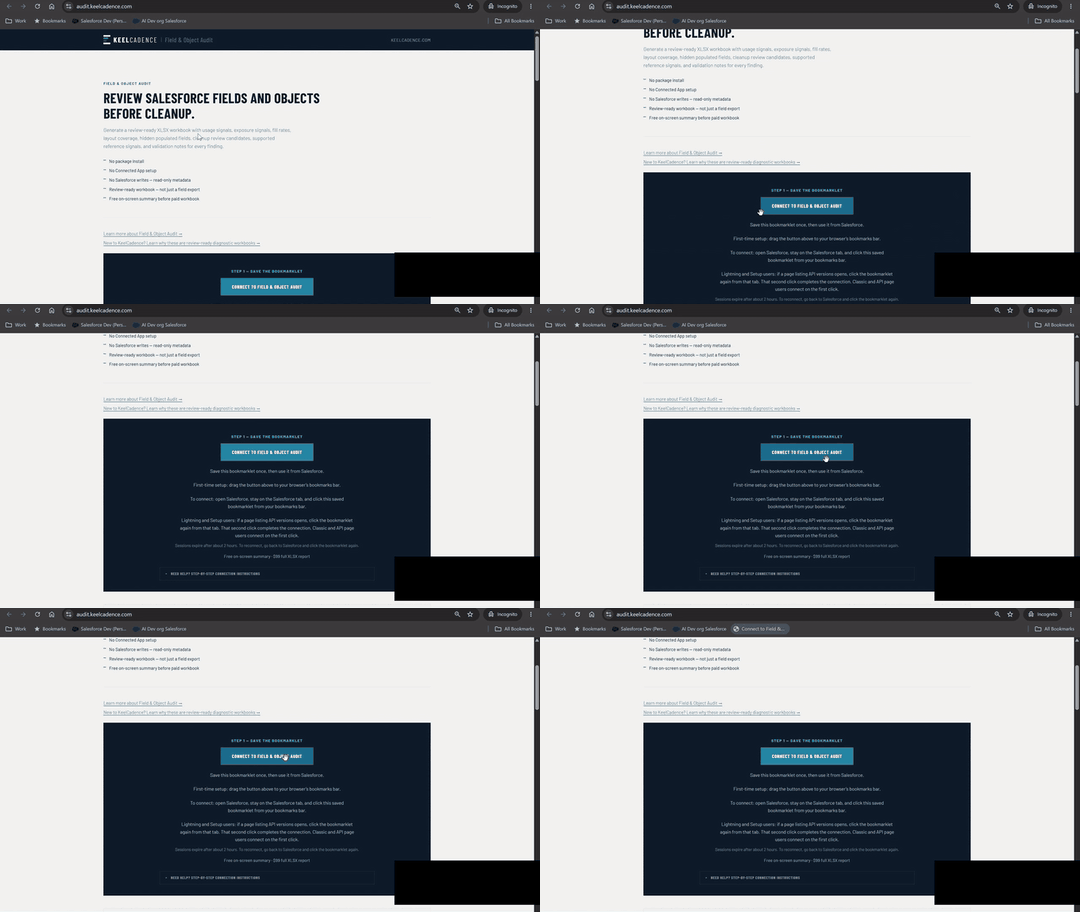
Sessions expire after about 2 hours. To reconnect, go back to Salesforce and click the bookmarklet again.
On a phone or tablet? Bookmarklets need a desktop browser. Save this page for your desktop, or view the sample workbook now.
Need help? Step-by-step instructions below| Summary item | Value |
|---|---|
| Profiles reviewed | 24 |
| Permission sets reviewed | 61 |
| Over-privileged patterns | 67 |
| Unassigned permission sets | 23 |
| Permission health baseline | 18 / 100 |
Four steps, no install.
Save the bookmarklet once
Drag "Connect to Permission & FLS Audit" into your browser's bookmarks bar.
This creates a browser bookmark. Nothing is installed in Salesforce, and nothing is downloaded to your computer.
If your bookmarks bar is hidden -- Windows: Ctrl+Shift+B · Mac: Cmd+Shift+B
Open Salesforce
Go to your Salesforce org in another browser tab.
You must already be logged into Salesforce before using the bookmarklet. Stay on the Salesforce tab before clicking.
Click the bookmarklet from Salesforce
While you are on a Salesforce page, click "Connect to Permission & FLS Audit" from your bookmarks bar.
If you are on a Classic or API page, KeelCadence may connect immediately. If you are on a Lightning or Setup page, Salesforce will usually open a new XML/API page -- that is expected.
If the XML/API page opens, click it again
Stay on the XML/API page. Click the same "Connect to Permission & FLS Audit" bookmarklet again from your bookmarks bar.
This second click completes the connection and sends you to the audit setup page.
Returning users
If you already saved the bookmarklet, you can start directly from Salesforce. You do not need to come back to this page first.
If your session expires, go back to Salesforce and click the saved bookmarklet again.
Free summary first. Pay once, keep the workbook.
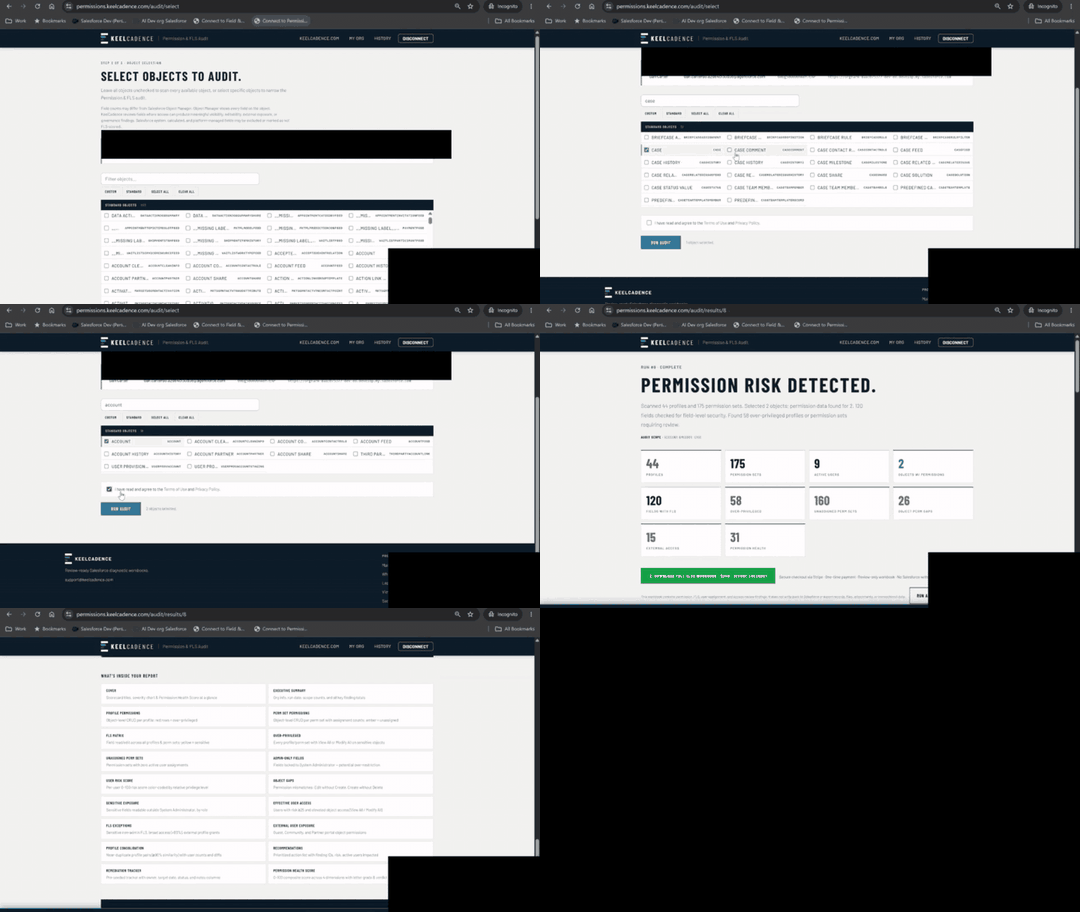
Need a full walkthrough?
Watch the tutorial showing how to add the bookmarklet, connect from Salesforce, run the diagnostic, and review results.
19 review-ready sheets.
Fictitious, anonymized demo data. "Acme Corp" is a demo org used for illustration.
| Profile / Perm Set | Object | View All | Modify All | Risk |
|---|---|---|---|---|
| Legacy Sales Profile | Account | Yes | Yes | High |
| Marketing User | Opportunity | Yes | No | Medium |
| Integration PS_v1 | Contact | Yes | Yes | High |
| Support Tier 1 | Case | No | No | Low |
| Ops Admin Clone | Account | Yes | Yes | High |
Free on-screen summary includes key findings, risk counts, and high-level results. The $249 XLSX report includes profile, permission set, FLS, over-privilege, user risk, and remediation detail.
Preview the workbook before you run the audit. This sample includes representative data across Account, Contact, Lead, Opportunity, and Case so you can review the report structure, tabs, findings, and remediation format before purchasing. Paid reports cover all objects and fields you select. The more objects included, the more complete the risk picture.
What this diagnostic can access, and what it does not do.
What this audit can access
This audit uses your existing Salesforce browser session to read profiles, permission sets, object permissions, field permissions, and active user assignment metadata. It does not modify Salesforce, does not create, update, or delete records, does not install a package, does not create a Connected App, and does not store your Salesforce Session ID in the database.
- No package install required
- No Connected App setup required
- No persistent Salesforce access token stored
- Read-only access -- does not modify permissions, records, or org settings
- No customer records, files, attachments, or transactional data exported
- Session-based access expires when your Salesforce session ends
- Audit reports retained for 90 days and deletable on request
What this audit does not do
KeelCadence is not a Salesforce data export tool. It reviews metadata, configuration, permission structures, and aggregate counts where needed for diagnostic scoring. It does not export customer records, files, attachments, emails, Chatter content, or transactional data. The report maps access configuration, profiles, permission sets, object permissions, and field-level security, not the underlying field values users may have access to.
Manual connect (advanced)
sid cookie value in DevTools for security. The bookmarklet above is the only
reliable way to retrieve it automatically. Use this form only if you already have the Session ID
from another source (e.g. a Salesforce API client or your IT team).
Get your Session ID
The sid cookie value is now masked in most browsers' DevTools.
The most reliable way to get a valid session token is to use the bookmarklet above,
which reads it directly from the browser's cookie store.
If you have access to a Salesforce API client or a tool that exposes the raw
sid, paste it below.
Your Instance URL
Copy your Salesforce URL from the address bar -- everything up to and including
.salesforce.com.
| Production: | https://mycompany.my.salesforce.com |
| Sandbox: | https://mycompany--uat.sandbox.my.salesforce.com |
| Developer / Trial: | https://mycompany.develop.my.salesforce.com |
| Trailhead Playground: | https://myorg.trailblaze.my.salesforce.com |
If you're on a Trailhead Playground or Developer Edition org, your URL will have
.develop or .trailblaze before .my.salesforce.com --
include that whole domain.
Paste & Connect
What your account needs.
- API access enabled -- required to read Salesforce metadata via the REST API
- System Administrator profile recommended for complete results across all objects and fields
- Lower-permission users may receive partial results -- only objects and fields you can read will be audited
- Works through your active Salesforce browser session -- no package or Connected App setup required
Works with Professional, Enterprise, Unlimited, and Developer editions. View Setup and Configuration permission is required to read field and object definitions.
Ready when your Salesforce tab is.
Save the Connect button, open your org, and click the bookmark from the Salesforce tab. The free summary runs in about a minute.
Back to the steps Learn more about this workbook at keelcadence.com